Uploading documents and how AI reads them
Written By Kevin Ruth
Last updated 5 months ago
Documents are the starting point for your application. Upload your plans, specs, and reports, and the AI reads them to fill in your application. This is the part that saves you the most time — instead of typing everything from scratch, you're reviewing what the AI extracted and correcting anything it got wrong.
Accepted file types
You can upload:
PDF — site plans, structural drawings, reports, letters
Images (.jpg, .jpeg, .png) — site photos, sketches, scanned documents
Files up to 500 MB work well. Very large files may take longer to process.
How to upload
You can upload from any tab in the workbench — the upload button sits in the tab bar at the top of the page.
Click the upload button in the tab bar
Select one or more files from your computer
The system starts processing each file immediately
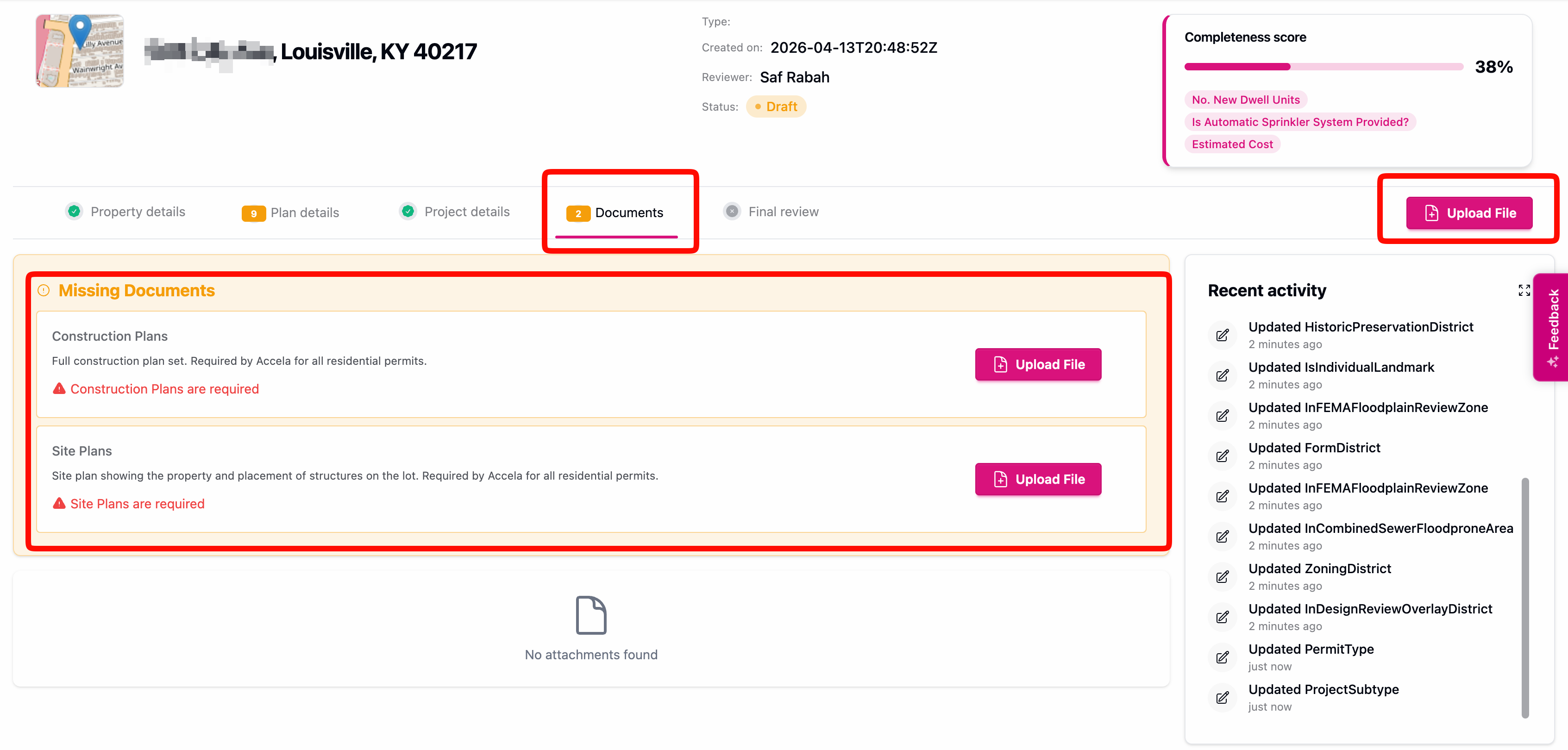
After uploading, the system automatically switches you to the Documents tab so you can see your files being processed.
What happens after you upload
Once a file is uploaded:
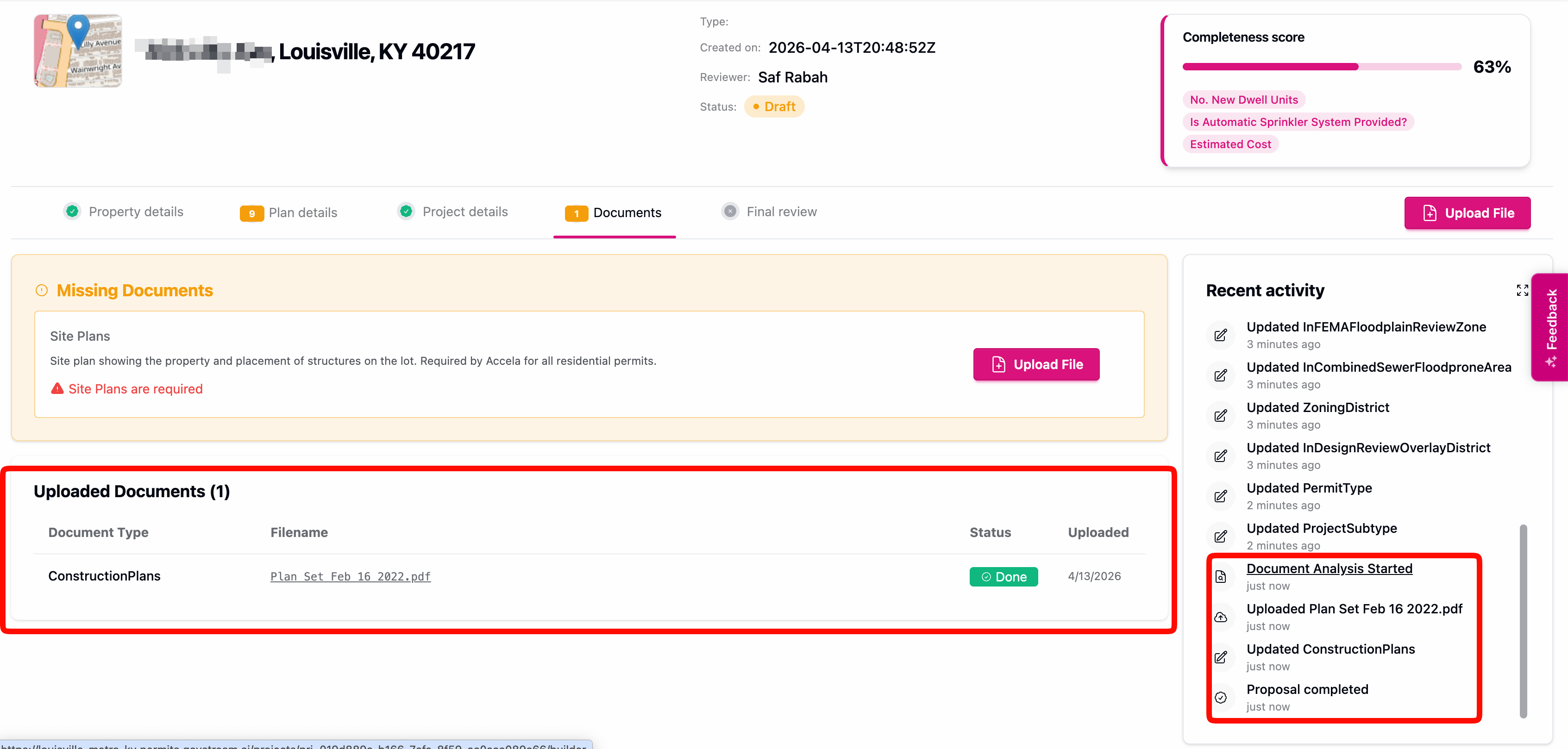
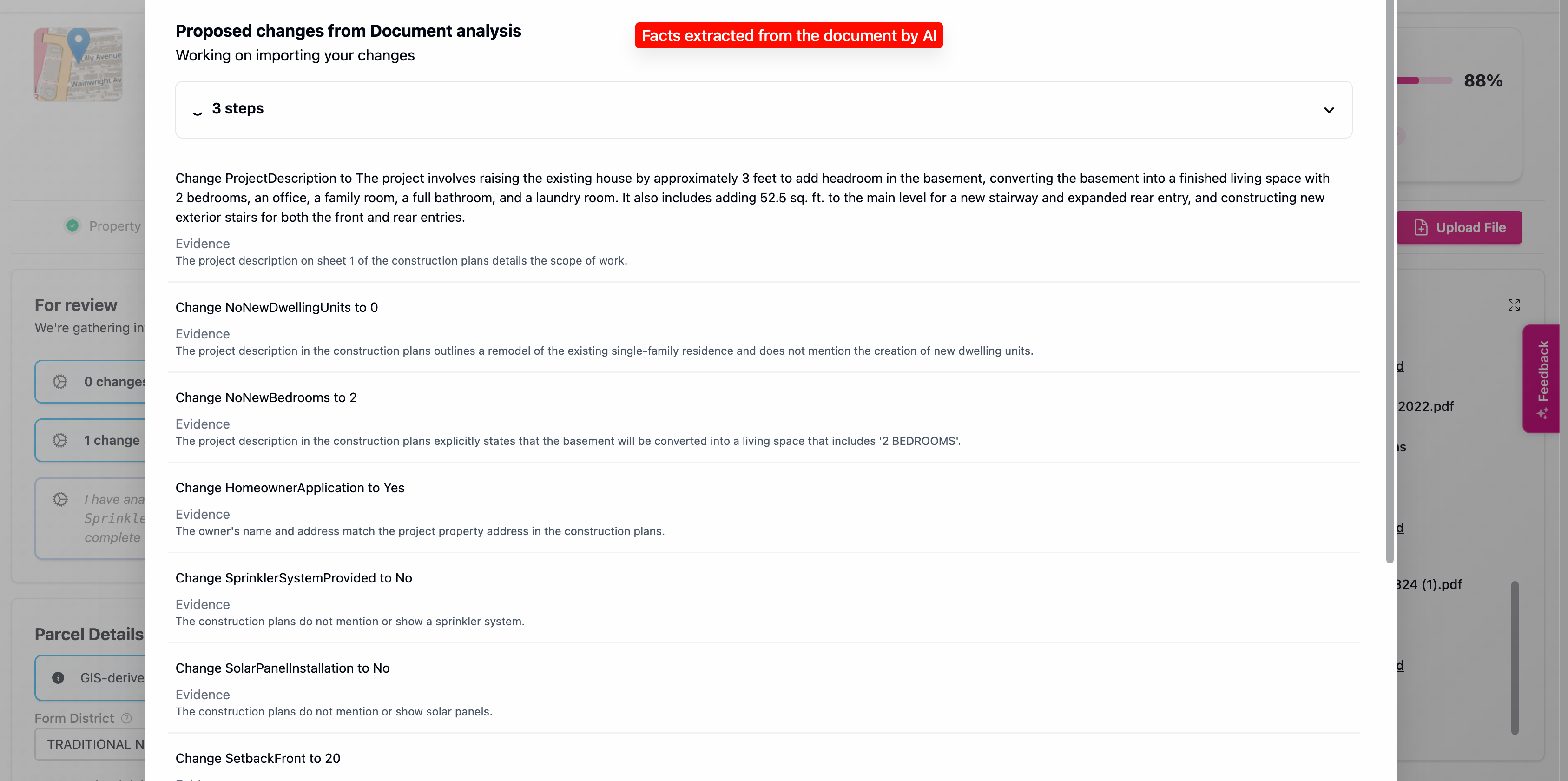
The AI reads the document — it scans for relevant information like dimensions, materials, addresses, contractor names, and project descriptions
It classifies the document — figures out whether it's a site plan, structural drawing, permit application, or something else
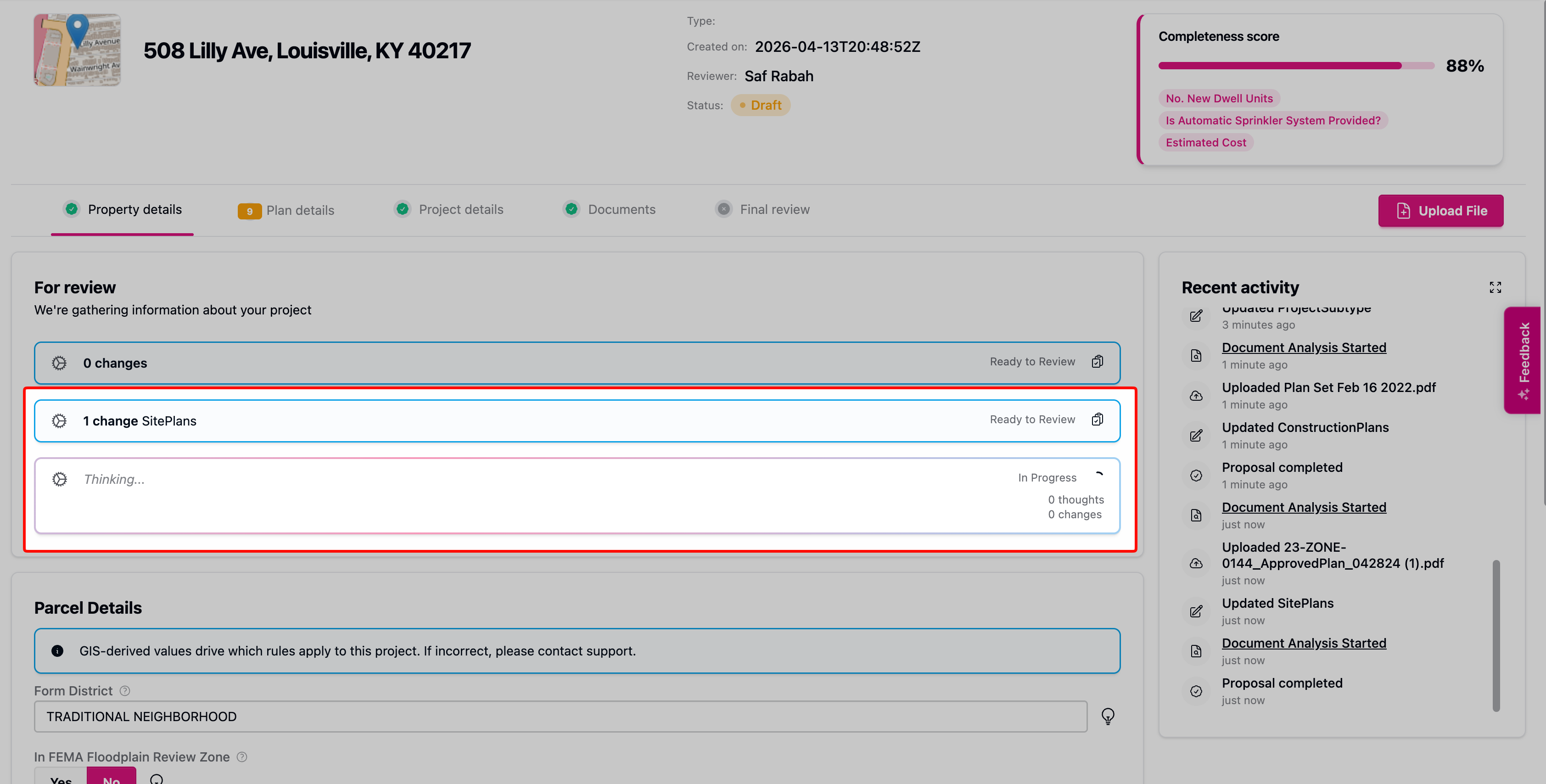
It shows you a summary — each uploaded document gets a brief AI-generated description of what it found
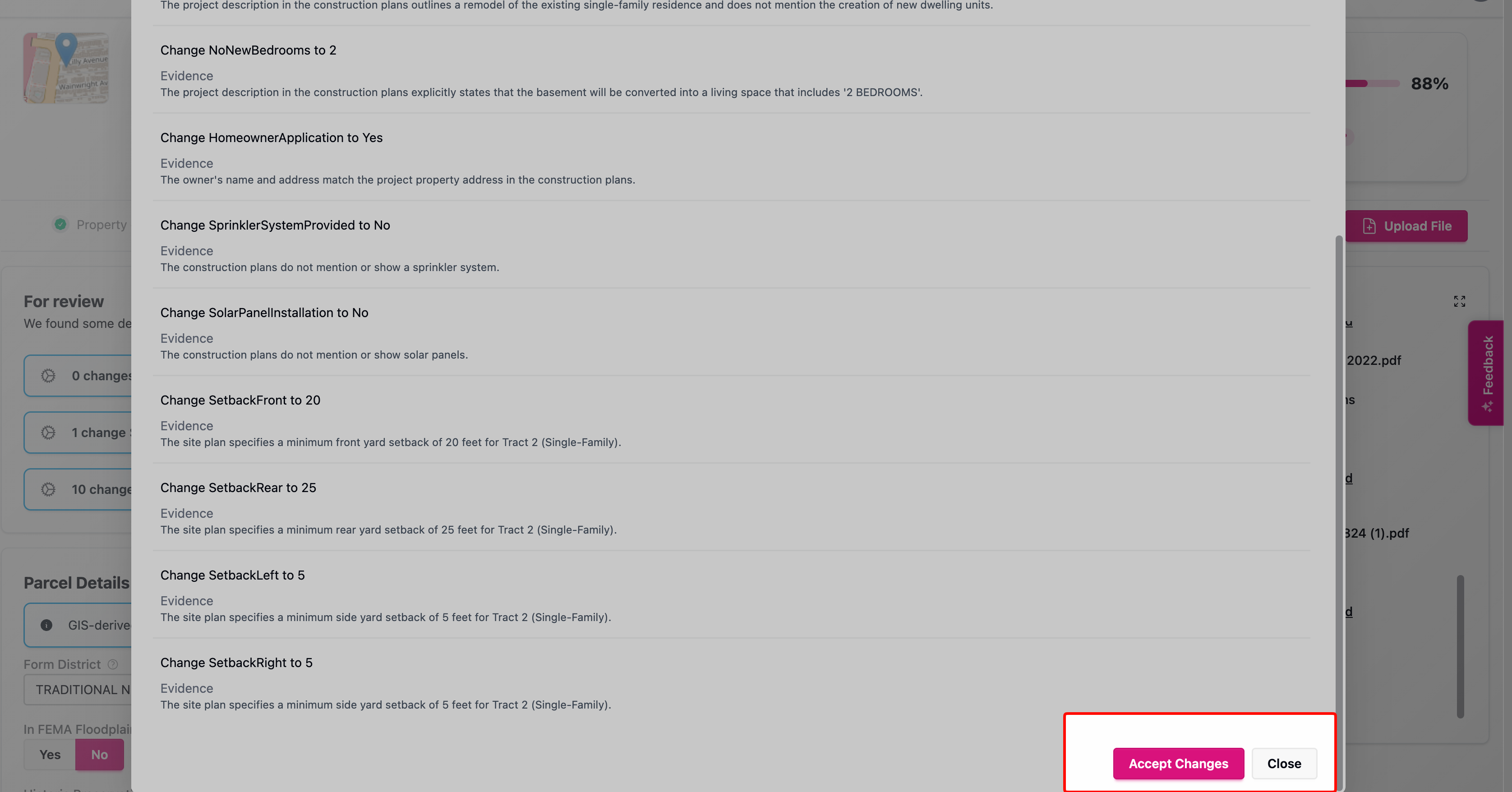
You can accept the changes - this fills in the application fields with the information extracted from the documents.
This usually takes a few seconds per document. You'll see progress on each file as it processes.
Reviewing AI-filled fields
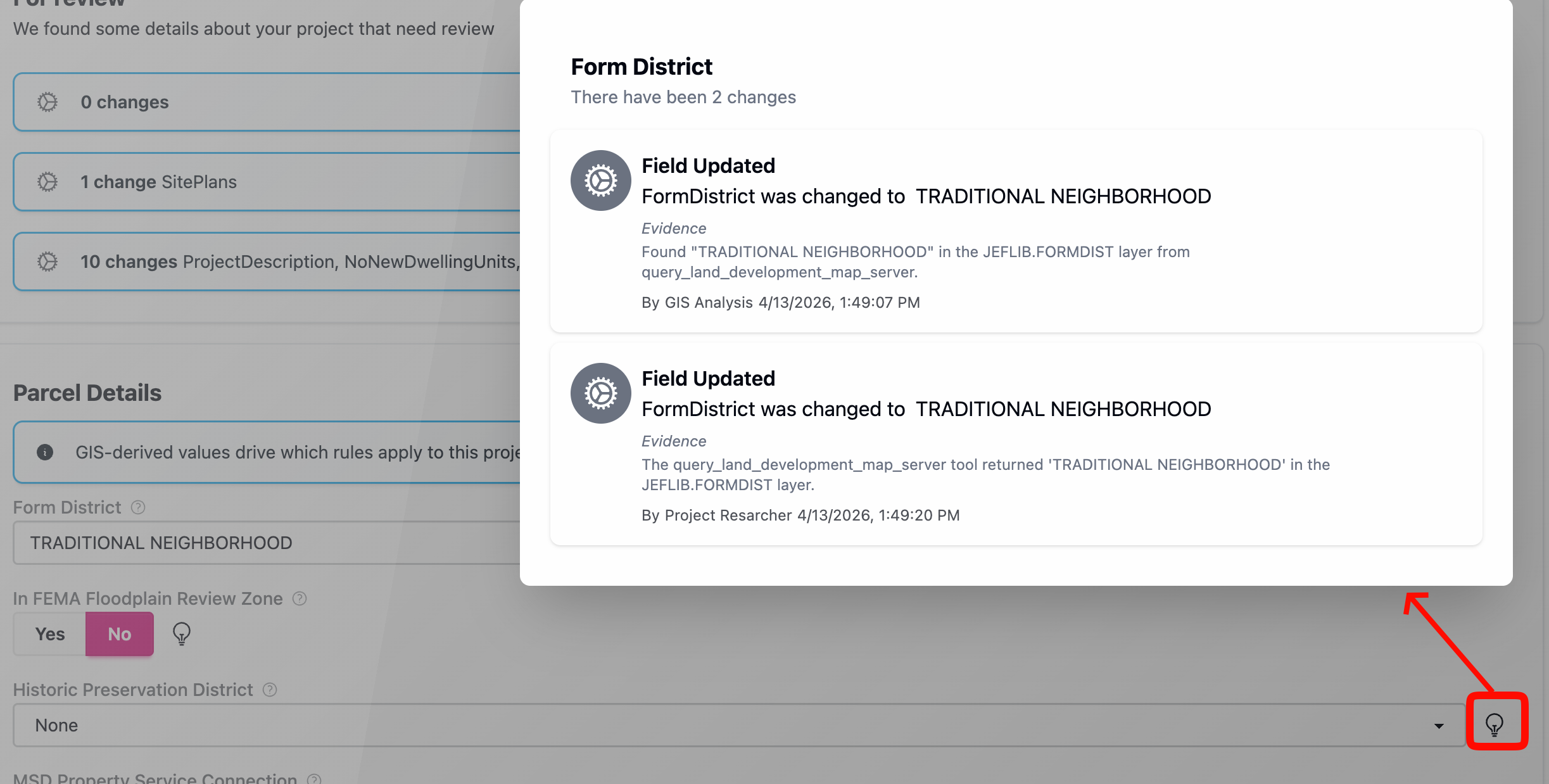
When the AI fills in a field from your documents, you'll see a lightbulb icon on that field. Hover over it to see who last changed the value — the AI or you. If the AI got something wrong, just overwrite it with the correct value. Nothing is locked — every field is editable.
Required vs. uploaded documents
The Documents tab shows two sections:
Missing documents — files you still need to provide, shown with an orange warning indicator and an upload button next to each one
Uploaded documents — files you've already provided, shown with status, filename, and upload date
Each uploaded document also shows its AI-generated summary so you can confirm the system understood what the file is.
The missing documents list comes from the requirements for your specific permit type and property conditions. If your property is in a flood zone, for example, you'll see an elevation certificate on the list that wouldn't appear for other properties.
Good to know
Upload your most detailed documents first — a full set of architectural plans gives the AI more to work with than rough sketches
You can overwrite anything the AI fills in the application. If the AI misreads a document or doesn’t fill in a field, you can always fill it in yourself.
The system processes documents in parallel, so uploading five files at once doesn't take five times as long
Your original files are preserved exactly as uploaded — the AI reads copies, it doesn't modify your originals